
We regularly need to extract text from PDF files. It may be a CV, invoice, report, note, presentation, book, or another document where the information is already available but needs to be copied, edited, searched, or reused somewhere else.
In many cases, we end up reading the PDF and typing the information again by hand. I have done the same thing myself. That may be manageable for a few lines, but with a longer document it takes time, and manual typing can easily introduce mistakes.
To make this everyday task easier, I developed a PDF to Text extraction tool as part of DocuPulse.AI . The tool extracts embedded text from readable, text-based PDFs. You can process the complete document or select specific pages, review the extracted text, and download the result as a TXT file.
For this guide, I wanted to use a real document rather than create an imaginary example. With permission from a friend, I used a two-page CV and went through the complete process myself. I extracted Page 1 separately, processed the complete PDF, checked the extracted text against the source document, and downloaded the result.
The screenshots below come from that practical test.
Try the DocuPulse.AI PDF to Text Converter
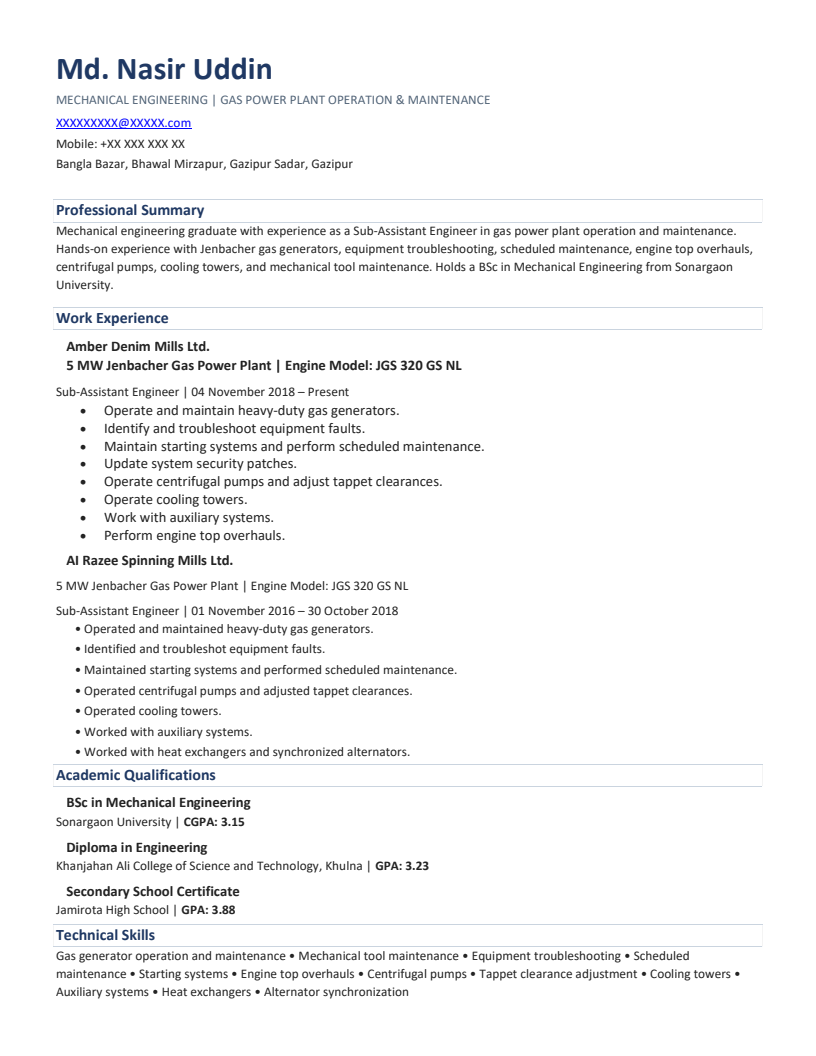
The PDF I used for this practical test
I started with a two-page CV saved as a PDF. The document contained normal CV information such as a professional summary, work experience, academic qualifications and technical skills.
Before uploading the file, I checked that the PDF contained selectable text. This matters because the current PDF to Text Converter reads text that is already embedded in the PDF. It does not perform OCR on scanned or image-only pages.
A quick check is to open your PDF and try selecting a sentence. If individual words can be highlighted and copied, the document is usually suitable for this type of PDF text extraction.
Step 1: Choose the PDF
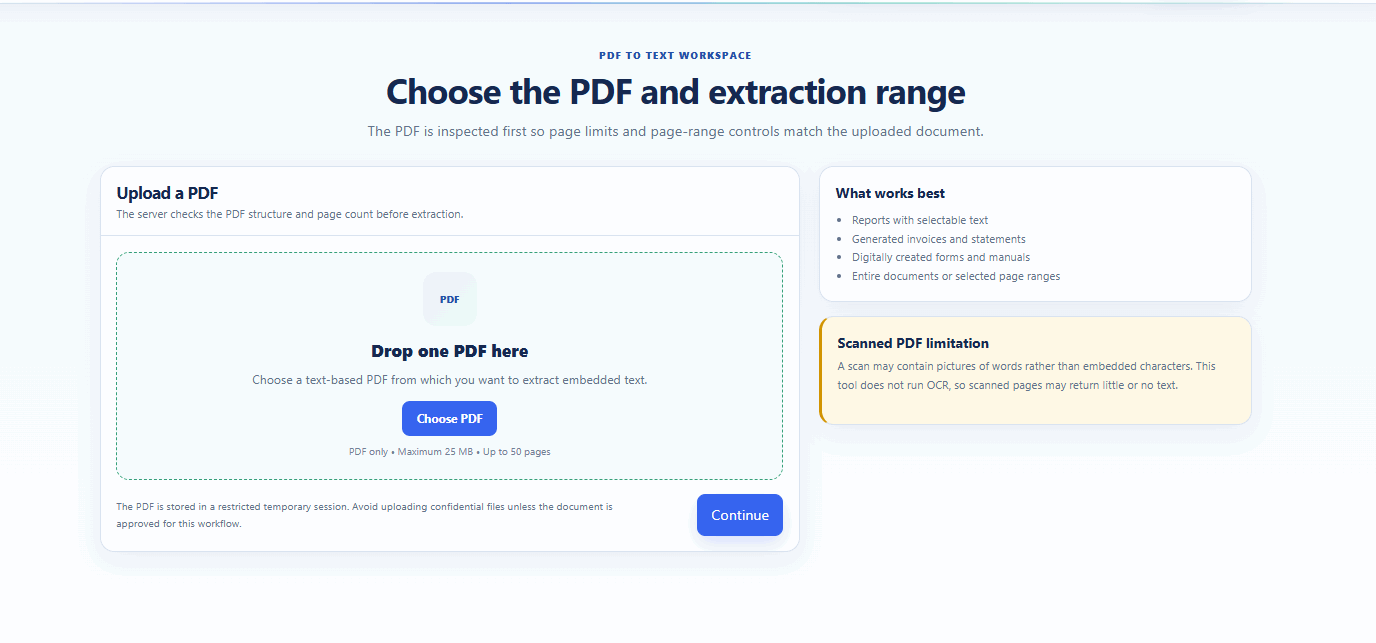
I opened the DocuPulse.AI PDF to Text Converter and selected Choose PDF.
The current public workflow accepts:
- PDF files only
- One PDF at a time
- Maximum file size: 25 MB
- Maximum document length: 50 pages
These limits are shown in the upload area before processing begins.
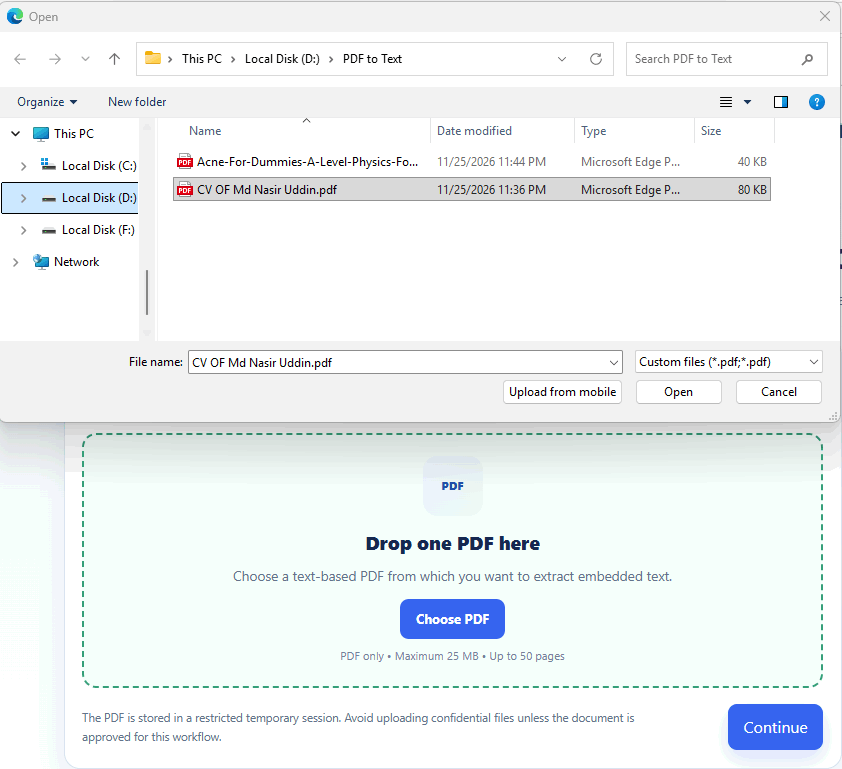
I clicked Choose PDF, found the CV on my computer, selected the file, and opened it.
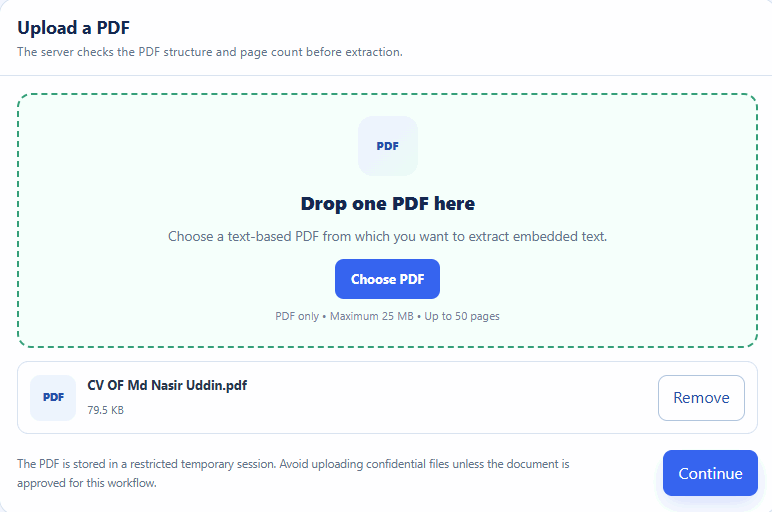
After selecting the document, the filename and file size appeared below the upload area. This gave me a chance to confirm that I had selected the correct file before continuing.
Step 2: Choose the pages to extract
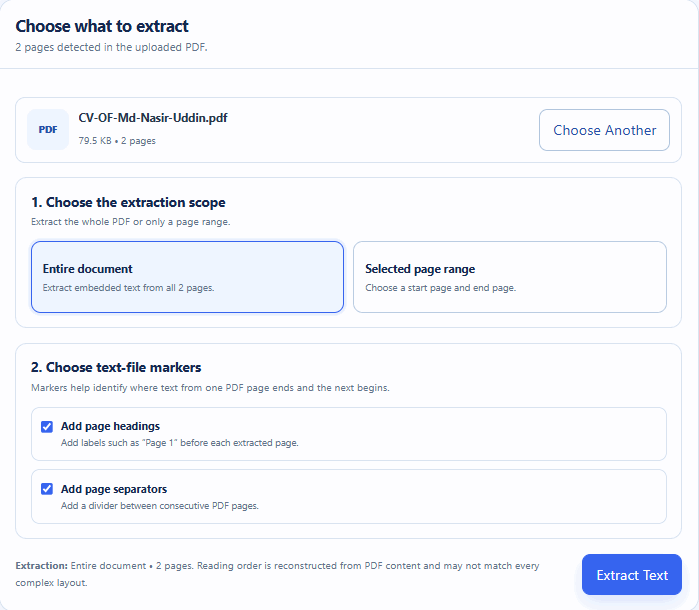
After I selected Continue, the tool inspected the PDF and detected that the CV contained two pages.
At this point, I could process the complete document or specify a page range. I tested both options because they are useful in different situations.
Extract the entire PDF
When I wanted all the text from the CV, I selected Entire document. Both pages were included in the extraction.
Extract only Page 1
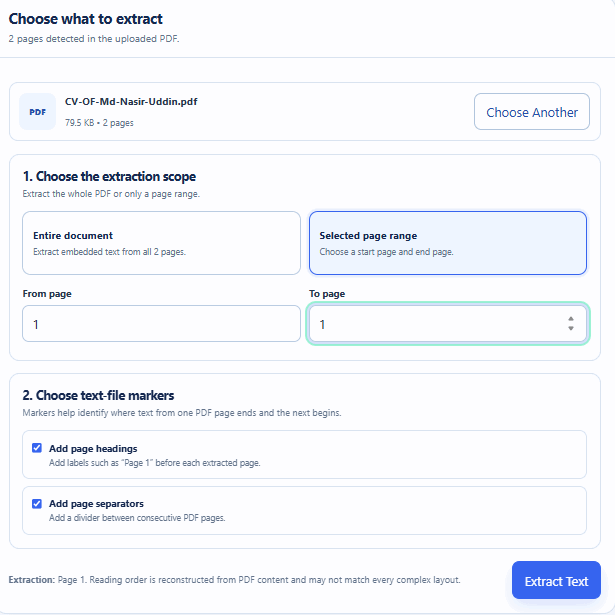
I also tested Selected page range. I entered 1 for both the starting and ending page, which meant that only Page 1 would be processed.
Page-range extraction can be useful with larger documents. If a 30-page report contains the information you need only on pages 8 to 12, you can select those pages instead of extracting the entire report.
Step 3: Keep page headings when page references matter
I kept Add page headings and Add page separators enabled during the test.
Page headings add markers such as Page 1 and Page 2 to the output. Separators make it easier to identify where text from one PDF page ends and the next page begins.
I find these options particularly useful when extracting several pages from a report or document because the downloaded file is plain text. They do not recreate the original page layout. They simply make the result easier to follow.
Step 4: Check the single-page extraction
I started by extracting only Page 1.
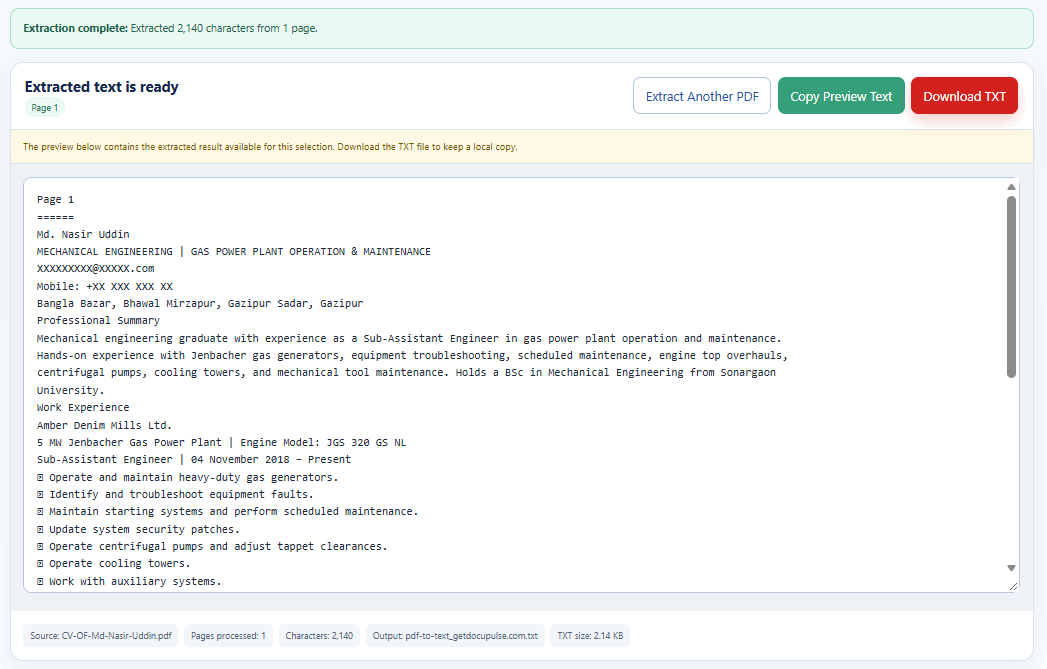
The extraction completed successfully and returned 2,140 characters from 1 page.
The extracted text appeared directly in the browser preview, which allowed me to compare the result with the original PDF before downloading the TXT file.
The preview contained readable information from the first page of the CV, including the professional summary, work experience, academic qualifications, technical information and other text contained in the PDF.
The result panel also confirmed that 1 page had been processed, with 2,140 characters extracted and a generated TXT file of approximately 2.14 KB.
Step 5: Compare the PDF with the extracted text
This was the most useful part of the test for me.
Instead of looking only at an "extraction complete" message, I put the original document and the extracted result side by side. This made it much easier to check whether the information I could see in the PDF had also appeared in the text result.
The purpose of PDF-to-TXT extraction is not to reproduce the visual design. The original CV contains headings, spacing and visual formatting. The result contains the readable content in plain-text form.
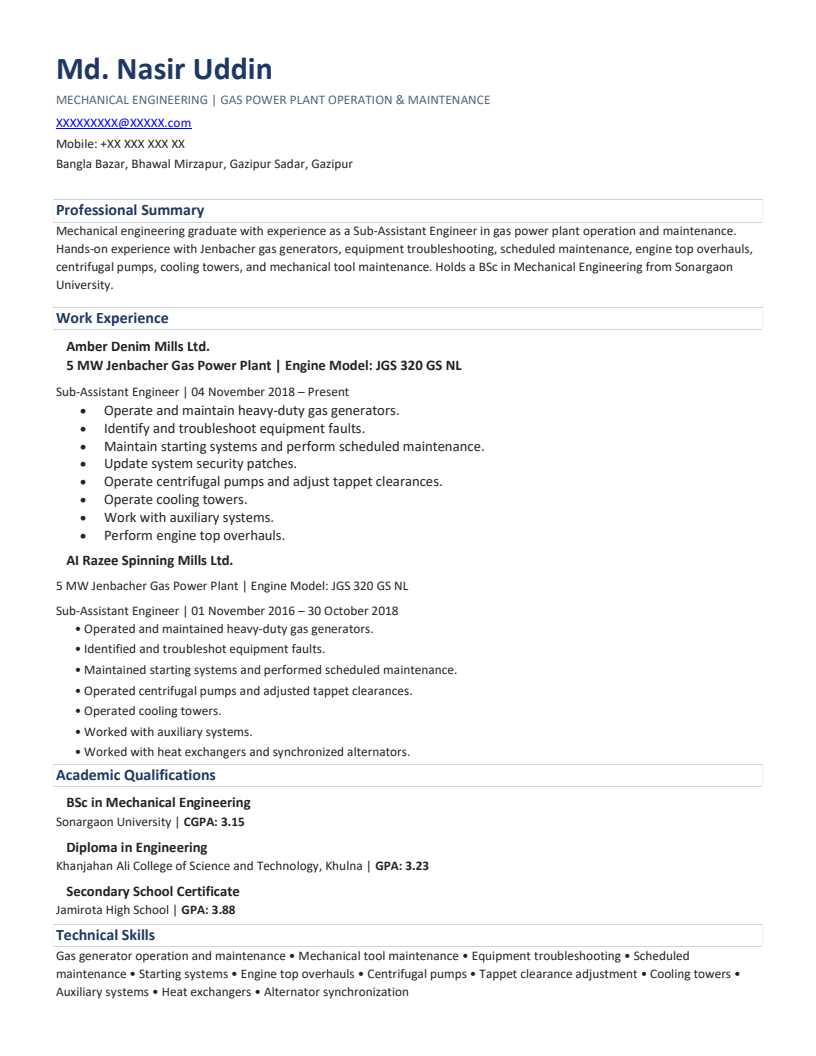
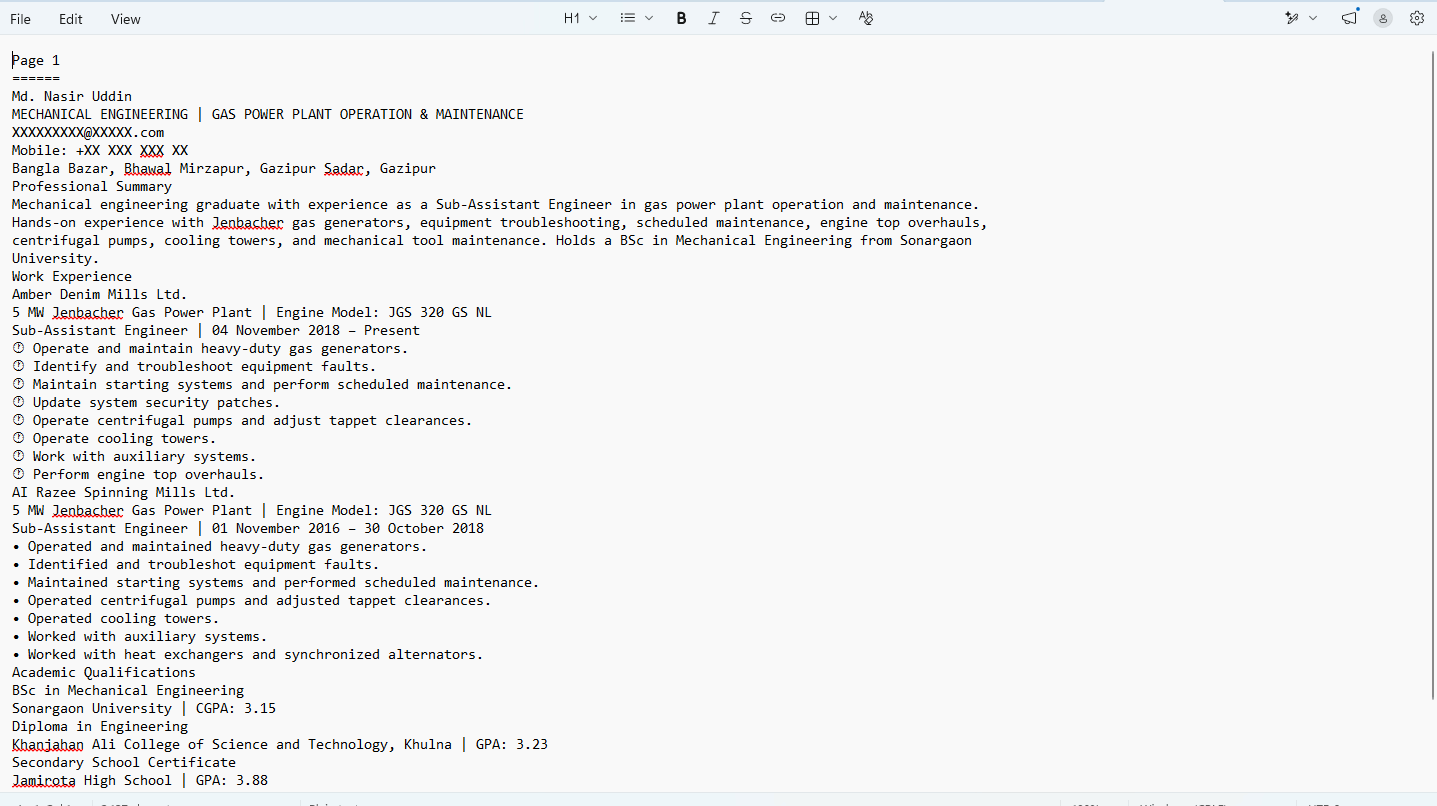
This before-and-after comparison shows the practical difference clearly. The PDF remains useful as the formatted source document, while the TXT result gives me text that I can search, copy, edit, or reuse without typing the full document again.
Step 6: Extract the complete two-page PDF
After checking the single-page result, I processed the same CV again using Entire document.
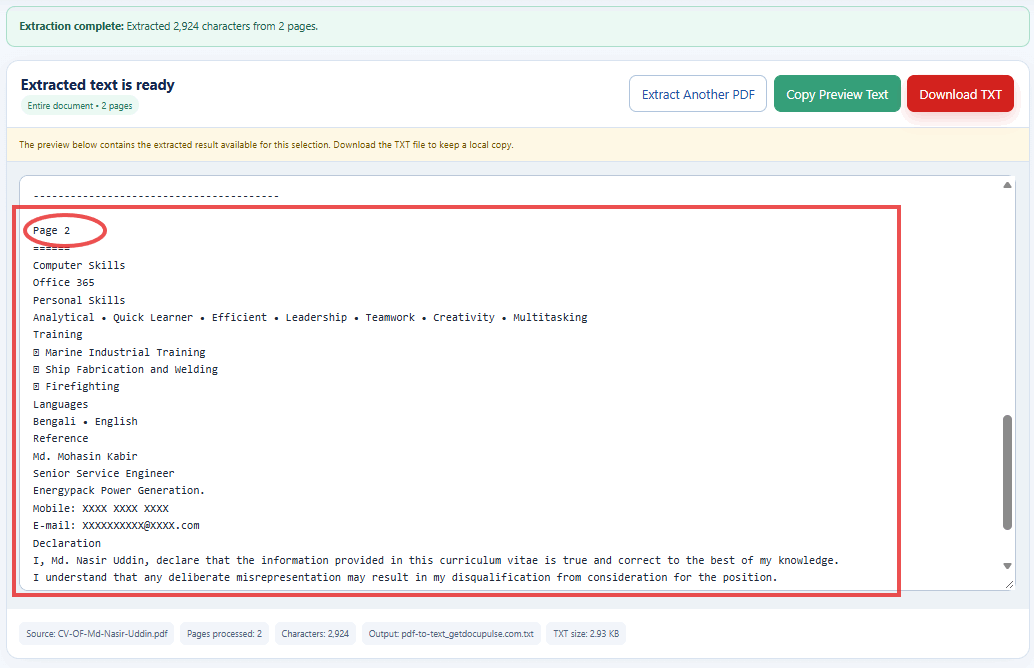
Both PDF pages were included. Because page headings and separators were enabled, the extracted result clearly indicated when the content moved from Page 1 to Page 2.
This becomes more useful as a document gets longer. If I later need to compare a section of extracted text with the source PDF, I still have a basic page reference in the TXT output.
Step 7: Copy or download the extracted text
Once the result was ready, I could use either Copy Preview Text or Download TXT.
Copy Preview Text is useful when I need a small amount of content immediately. I can copy the visible result and paste it into another application.
For the full extraction, I use Download TXT. This saves the extracted content as a plain-text file on the computer.
The browser preview is mainly there to check the result. If a longer document contains more text than the preview can display, the downloaded TXT file should be used for the complete output.
What changed between the PDF and TXT file?
Before extraction, I had a formatted CV designed for reading and sharing. After extraction, I had its written content in a plain-text format that could be searched, copied, edited and reused.
What I did not get was another visually identical CV. That is expected.
TXT is plain text. It does not preserve the PDF's original fonts, colours, images, columns, tables, margins or exact positioning.
This distinction is important. If you need the appearance of the document, keep the PDF. If you need the written content in a simple editable format, TXT can be much easier to work with.
What types of PDFs can I use?
The current PDF to Text Converter is designed for text-based PDFs containing embedded text.
Depending on how they were created, suitable files may include:
- CVs and resumes
- Text-based invoices
- Reports
- Notes
- Books or reading material saved as text-based PDFs
- Documents exported to PDF
- Presentations exported as text-based PDFs
- Manuals
- Other PDFs containing selectable text
There is a very simple test: open the source PDF and try selecting a few words. If you can highlight individual words, the document is a better candidate for embedded-text extraction.
Scanned PDFs need a different process
A PDF can look perfectly readable and still contain no embedded text.
This commonly happens when a paper document is scanned. The page may simply be stored as an image. We can see the letters, but a standard text extractor has no underlying characters to read.
That type of document requires Optical Character Recognition (OCR).
The current DocuPulse.AI PDF to Text Converter does not perform OCR. It extracts existing embedded text from text-based PDFs.
I prefer to make this limitation clear because it helps users choose the right document before uploading it. If the whole page behaves like an image rather than selectable words, an OCR workflow is usually required instead.
Why extracted text may not look exactly like the PDF
PDF files are primarily designed to preserve how a page appears. Internally, headings, columns, table cells and other text can be positioned separately.
When that content is reconstructed as plain text, you may see:
- different line breaks;
- headers or footers mixed with the main text;
- columns appearing in a different reading order;
- tables losing their rows and columns;
- spacing that differs from the original page; or
- some special characters affected by the PDF's font encoding.
For that reason, I always compare important information with the original document.
With invoices and other business documents, values such as names, dates, invoice numbers, reference numbers and amounts should be checked before the extracted data is reused.
Privacy and temporary processing
It is also worth thinking about what a document contains before uploading it to any online file-processing service.
DocuPulse.AI uses a restricted temporary processing workflow for uploaded files and generated output. The PDF to Text Converter is a processing tool rather than permanent document storage.
I would still avoid uploading passwords, credentials, identity documents, banking records, medical information, confidential customer information or other sensitive documents unless they are approved for this type of online workflow.
Keep the original PDF and save your own copy of any extracted text you need.
For current information about file and data handling, read the DocuPulse.AI Privacy Policy .
My result from the practical test
This test reflects the main reason I developed the tool. I did not want to explain PDF text extraction using a made-up result.
I started with a real text-based CV, selected an individual page as well as the complete document, reviewed the extracted content against the source PDF, and downloaded the result as plain text.
In my single-page test, the tool processed 1 page and extracted 2,140 characters. I could then review that result directly in the browser before using the TXT output.
The before-and-after comparison made the purpose particularly clear. The original PDF remained the formatted reference document, while the extracted TXT provided text that could be searched, copied and edited without manually rewriting the CV.
Final thoughts
Extracting text from a PDF can remove a surprising amount of repetitive work when the document already contains embedded text.
My goal with the PDF to Text Converter was simple: select a PDF, choose the pages I actually need, extract the available text, check the result, and download it in a straightforward format.
That workflow is now available through DocuPulse.AI .
If you have a text-based CV, invoice, report, note, book, presentation, manual, or another PDF containing selectable text, you can try the same process with your own document.
Try the DocuPulse.AI PDF to Text Converter
Keep the original PDF for reference, check important information before reusing the extracted text, and remember that scanned or image-only PDFs require OCR rather than standard embedded-text extraction.