
A PDF does not always have to be completely unreadable before it becomes a problem. I have seen files that still open in a normal viewer but cause trouble when another application or document-processing workflow tries to use them.
That is the situation I wanted to test with the Repair PDF workflow in DocuPulse.AI .
The approach is deliberately simple. If the uploaded PDF still contains pages that can be opened and read, the tool attempts to build those readable pages into a separate new PDF.
It does not overwrite the original file, and it does not claim to recover information that is no longer accessible.
I already have a general guide explaining how the Repair PDF workflow works . This article is different. Here I am focusing on the practical test itself: selecting a problematic PDF, running the rebuild, downloading the result, and checking whether the new document is actually usable.
Open the DocuPulse.AI Repair PDF Tool
What I wanted to verify
I was not interested in seeing only a green success message.
For a repair workflow to be useful to me, I wanted to answer a few practical questions:
- Can the uploaded PDF still be opened by the processing library?
- Are readable pages available?
- Can those pages be written into a separate PDF?
- Does the new file open after it is created?
- Are the pages and important content still present?
- Is the original source left unchanged?
Step 1: Start with a safe test PDF
For a public demonstration like this, I recommend using a PDF created specifically for testing or an anonymized document that you are allowed to process and show.
I would not use a customer's file, an employee document, a private invoice, banking information, or a copyrighted book as public demonstration material.
The current Repair PDF workflow accepts one PDF up to 25 MB.
The upload page also makes an important point clear: the original uploaded file is not overwritten.
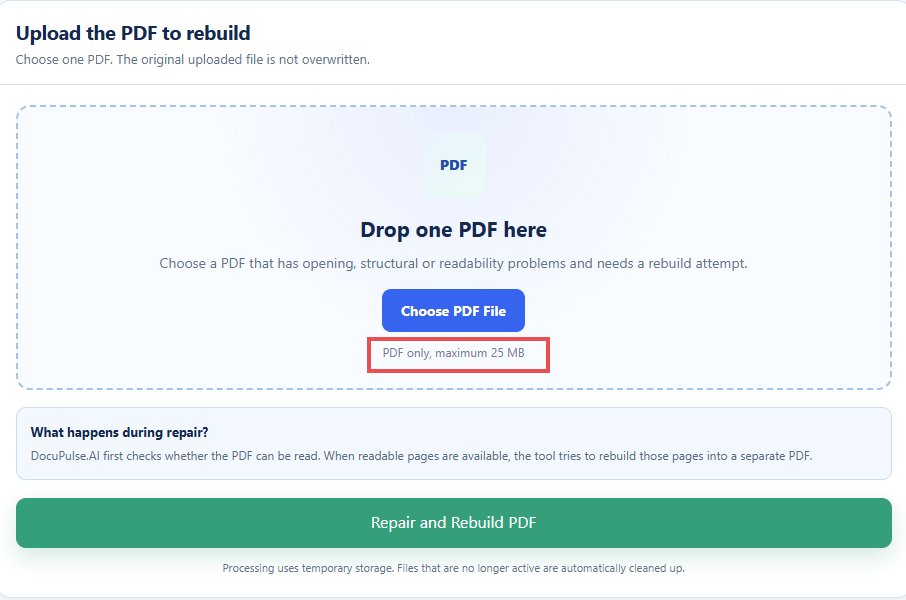
Step 2: Select the problematic PDF
Use Choose PDF File and select the document you want to test.
After selection, check the filename and file size before starting the repair. It is a small step, but it avoids processing the wrong document.
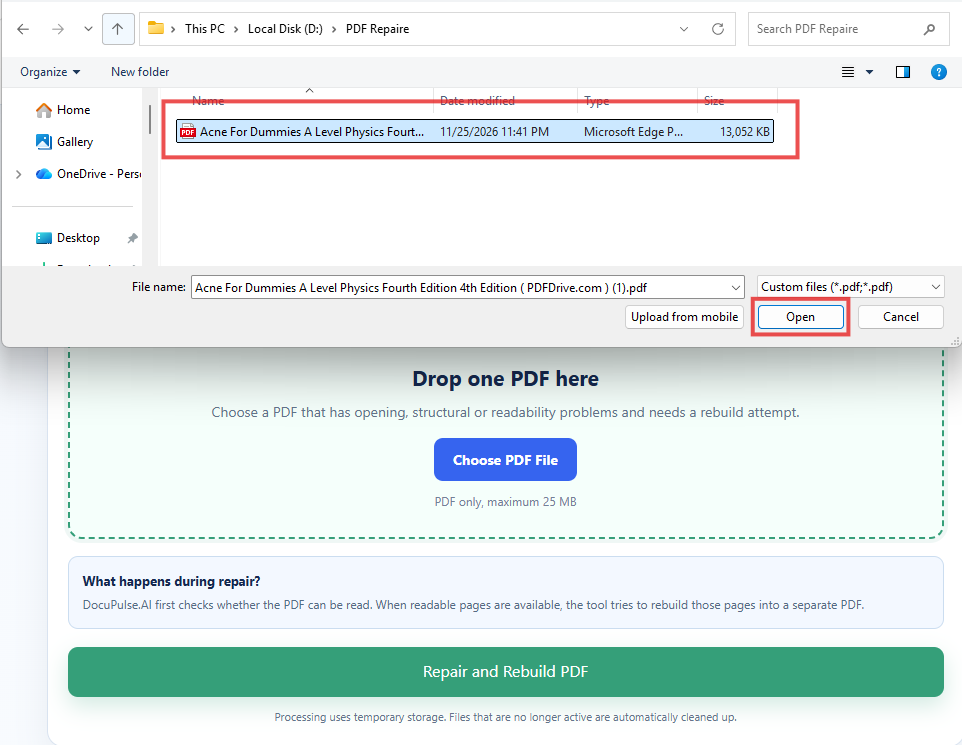
Once selected, the file appears beneath the upload area and is ready for the rebuild attempt.
Step 3: Run Repair and Rebuild PDF
Select Repair and Rebuild PDF.
Behind that button, the important question is whether the source still exposes usable pages.
When readable pages are available, the tool uses those pages to create a new PDF. When the source cannot provide enough readable structure, rebuilding cannot invent the missing content.
That distinction is why I prefer the wording rebuild attempt rather than treating PDF repair as a guaranteed recovery process.
Step 4: The rebuilt PDF stays separate from the original
When processing succeeds, the result screen creates a new PDF and clearly marks the source as unchanged.
This matters to me because I want to keep the source available for comparison. If the repaired copy contains an unexpected change, I still have the original document.
The generated filename follows a safe pattern based on the source filename.
| Example source | Example rebuilt file |
|---|---|
| sample-report.pdf | sample-report_getdocupulse.com.pdf |
The names above are examples. The actual output name is created from the sanitized source filename.
Step 5: Read the result before clicking Download
The result screen gives more information than a simple “complete” message.
It shows that a new PDF was created, confirms that it is a separate file, and provides information such as page count and output size.
Just as importantly, the page reminds me what I should review after downloading.
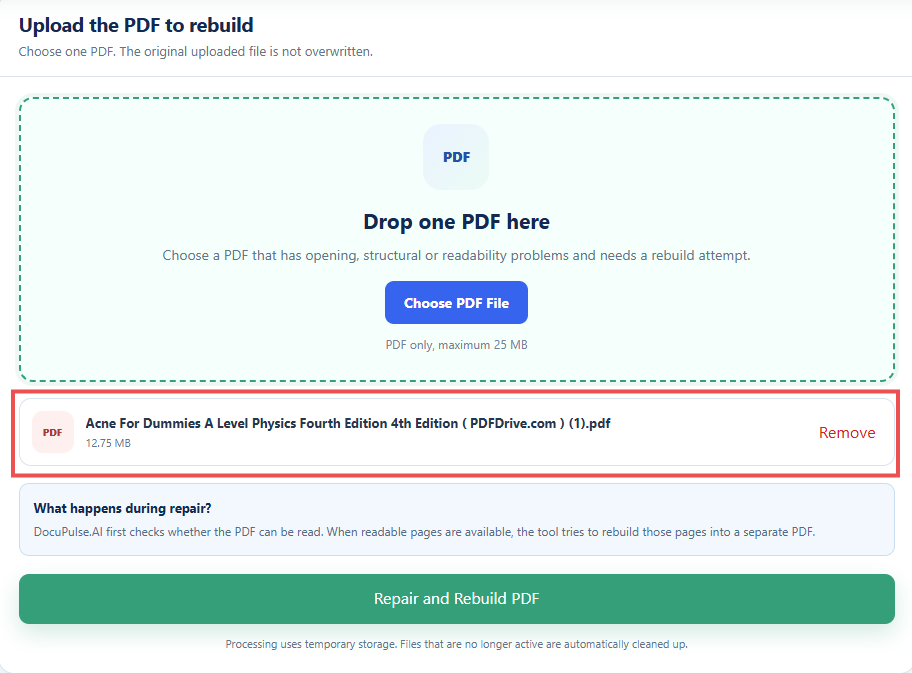
The result page breaks the process down clearly:
- check PDF readability;
- read the pages that remain available;
- build a separate PDF; and
- check the generated file before offering a download.
Step 6: Download before leaving the result page
When the rebuild is ready, use the red Download Repaired PDF button.
I download the file before refreshing or leaving the result page. The result screen belongs to the current processing session and is not permanent document storage.
Once the file is on my computer, I open it in a normal PDF reader.
Step 7: Verify the document manually
This is the part I would never skip for an important PDF.
The application can confirm that it created a readable PDF. Only I know whether the rebuilt document still contains the information that matters for the real task.
| What I verify | What I look for |
|---|---|
| Page count | Every page required for the document is present. |
| Text and numbers | Names, dates, values, totals and references are readable. |
| Images and scans | Required visual content remains visible. |
| Links | Important links still work when they are needed. |
| Forms and annotations | Required fields, comments, markups or stamps are present. |
| Signatures or records | Compare important evidence with the original or another trusted source. |
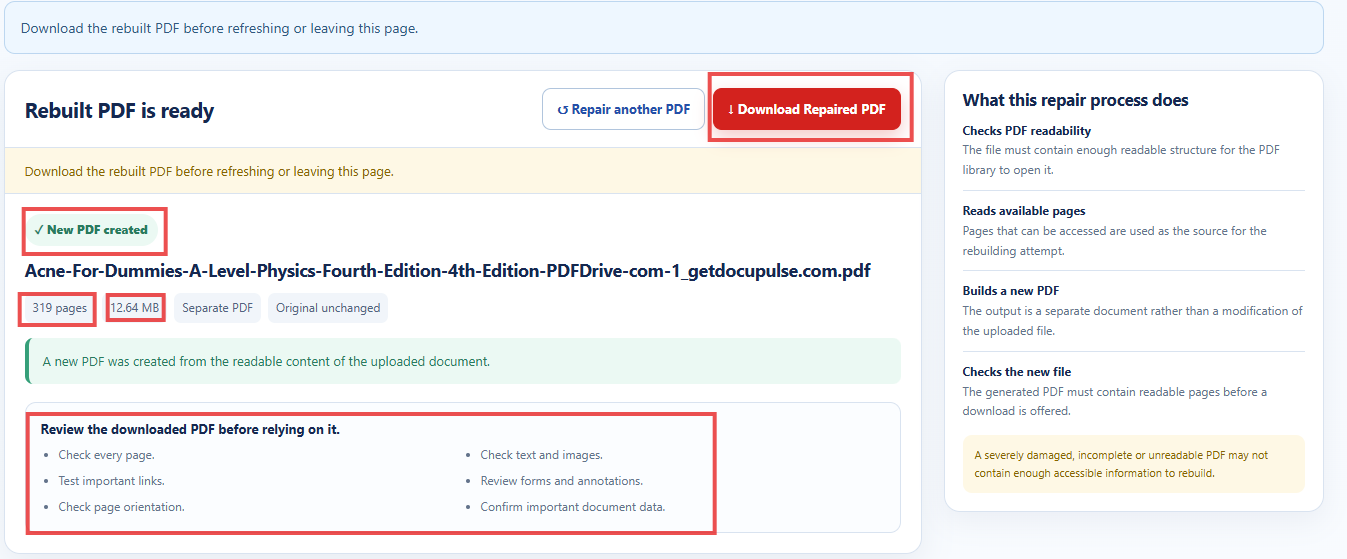
What this repair can and cannot do
I think the limitations are just as important as the successful result.
| Expectation | What the current workflow does |
|---|---|
| Rebuild accessible pages | Yes, when readable PDF pages remain available. |
| Keep the original unchanged | Yes. The rebuilt result is a separate PDF. |
| Guaranteed recovery | No. |
| Guaranteed 100% content recovery | No recovery percentage is promised. |
| Unknown password removal | Not part of Repair PDF. |
| Recreate data that is no longer readable | No. |
When a PDF rebuild is worth trying
I would consider this workflow when the PDF still appears to contain readable page content but another reader, application or document-processing system has trouble with the file.
Examples include:
- a PDF that opens partially but fails in another workflow;
- an exported PDF that behaves differently between applications;
- an older document whose pages can still be opened; or
- a PDF whose visible content remains accessible despite processing problems.
These are reasonable situations for a rebuild attempt. They are not guarantees that the rebuild will succeed.
When another tool makes more sense
Not every PDF problem is a repair problem.
| Problem | Better match |
|---|---|
| PDF has structural or readability problems | Repair PDF |
| A known password needs to be removed | Unlock PDF |
| Pages are sideways | Rotate PDF |
| Unwanted margins or page edges | Crop PDF |
| File opens normally but is too large | PDF Compressor |
Privacy and temporary processing
For a public tutorial, I prefer neutral or anonymized test files.
DocuPulse.AI uses temporary processing for its file tools rather than treating uploads as permanent document storage. The original PDF is not overwritten, and temporary uploaded and generated files are handled by the application's cleanup workflow.
I still would not upload credentials, banking information, medical records, confidential customer files or sensitive workplace documents unless that processing is specifically permitted.
Current file-handling information is available in the DocuPulse.AI Privacy Policy .
What I would try if the rebuild fails
The file is rejected immediately
Confirm that it is actually a PDF, is not empty, and stays within the current 25 MB upload limit.
The PDF asks for a password
That is a protection issue rather than something I would automatically treat as corruption. Repair PDF is not a password-cracking workflow.
No readable pages are available
I would look for another copy of the document or create a fresh export from the original application if it is still available.
Something is missing from the rebuilt PDF
I would compare the new file with the source or another trusted record. A rebuild cannot recover information that the processing library could not access in the source.
The new PDF still fails in another application
If possible, I would go back to the original source document and create a fresh PDF export instead of repeatedly rebuilding the problematic copy.
Frequently asked questions
Can every damaged PDF be rebuilt?
No. Enough readable PDF structure must remain for the tool to create a new document.
Does the tool guarantee full content recovery?
No. The rebuilt result needs to be reviewed against the original or another trusted source.
Is the original PDF overwritten?
No. The rebuild creates a separate output PDF.
What is the upload limit?
The current public workflow accepts one PDF up to 25 MB.
Can Repair PDF remove an unknown password?
No. Unknown-password recovery or bypass is not part of this tool.
Final thoughts
The most useful part of this test is not the word “repair.” It is the ability to take a problematic PDF that still contains readable pages, create a separate copy from those pages, and then check the new document against the source.
I would never assume that a successful rebuild automatically means every detail survived.
But when readable page content is still available, a clean rebuild is a practical option to try before giving up on the file.
You can test the same workflow with the DocuPulse.AI Repair PDF Tool .
Keep the original document, download the rebuilt copy, and verify the information that matters before using it for reporting, sharing, archiving or another important workflow.